
 AtomationDocsOIN SCIM guide
Configure Atomation SCIM provisioning in Okta
Set up SCIM 2.0 provisioning from Okta to Atomation so users are created, updated, deactivated, and mapped to role groups before they sign in with SAML.
Supported Features
Atomation supports SCIM 2.0 provisioning for workspace user lifecycle and group-to-role mapping. Configure SAML SSO separately with the Atomation SAML SSO guide.
- Create users.
- Read users and groups.
- Update user attributes.
- Deactivate and reactivate users.
- Patch users and groups.
- Push or link groups for Atomation role-group membership.
Current OIN submission scope: SAML SSO and SCIM provisioning only. Universal Logout is not part of this submission. SAML Just-In-Time provisioning is not supported; SCIM creates users before first SAML sign-in.
The recommended setup does not use profile sourcing, profile mastering, Entitlement Management, or SWA for this OIN submission.
Requirements
- An Atomation workspace with a known tenant subdomain, such as
subdomain. - A SAML app for the same selected Okta identity org.
- An Okta administrator who can enable provisioning and assign users/groups to the app.
- An Atomation SCIM bearer token generated for the selected identity org. The token is shown once.
SAML and SCIM must point to the same Atomation workspace identity org. Additional Okta orgs used for read-only assessment access do not receive this SCIM token.
SCIM values
Replace subdomain with the Atomation tenant subdomain provided for your workspace.
| Okta provisioning field | Value |
|---|---|
| SCIM version | 2.0 |
| SCIM connector base URL | https://subdomain.atomation.io/scim/v2 |
| Unique identifier field for users | userName |
| Authentication mode | HTTP Header |
| Authorization | Bearer plus the SCIM token from Atomation |
| Supported lifecycle actions | Create users, update attributes, deactivate/reactivate users, and push/link groups |
Configuration Steps
Generate the Atomation SCIM token
In Atomation, open the workspace SSO/SCIM settings for the selected identity org and generate a SCIM token. Copy it immediately. Atomation stores only a hash and cannot show the same token again.
Enable SCIM on the Okta app
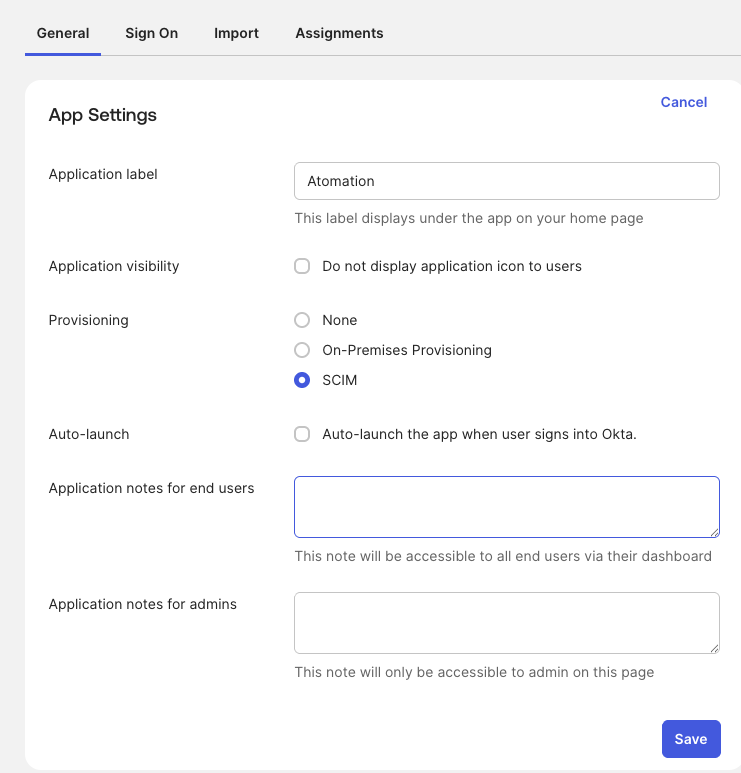
In Okta, open the Atomation SAML app. On the General tab, edit App Settings, select SCIM under Provisioning, and save.
Enter SCIM integration settings
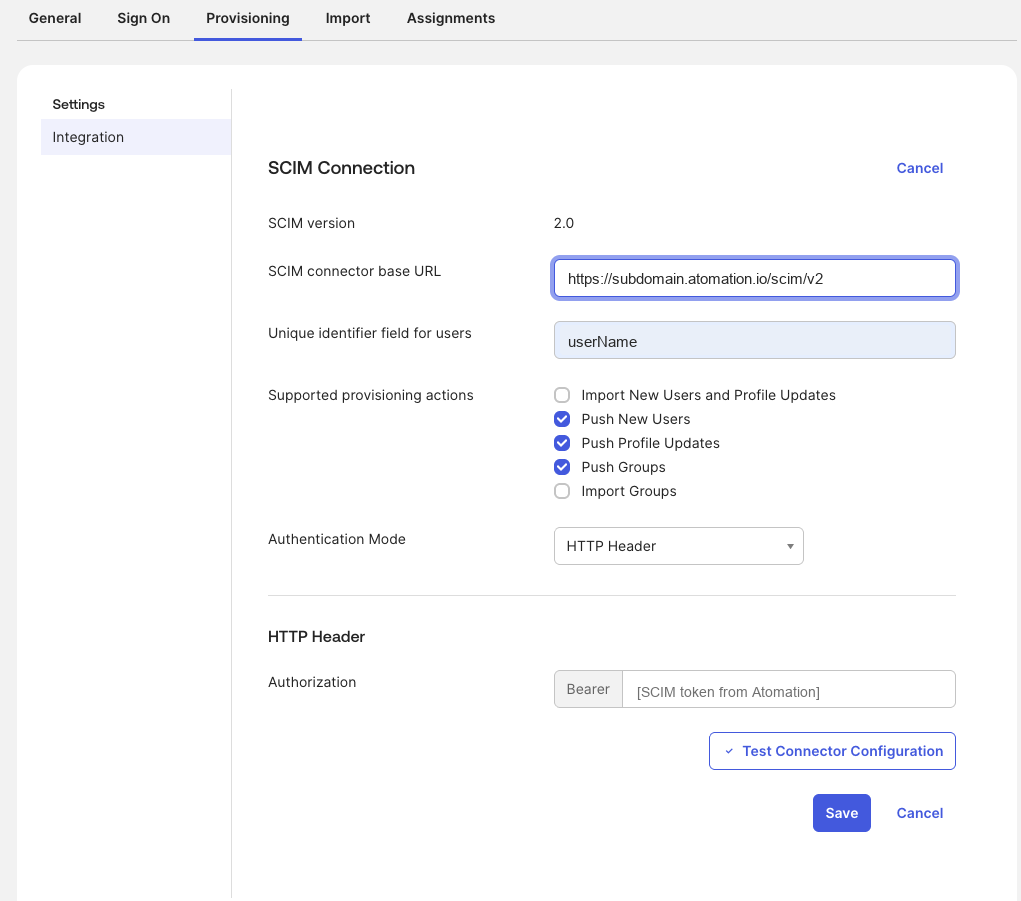
Open Provisioning → Integration. Set SCIM version to 2.0, paste the SCIM connector base URL, set the unique identifier to userName, choose HTTP Header authentication, and paste the SCIM token as the bearer token.
Test and save the connector
Click Test Connector Configuration. Save only after the test passes. If the test fails, rotate a new token in Atomation and confirm the base URL has the correct tenant subdomain.
Enable lifecycle actions
Under Provisioning → To App, enable Create Users, Update User Attributes, and Deactivate Users. Confirm mappings for username, first name, last name, and email.

userName, HTTP Header authentication, and bearer token.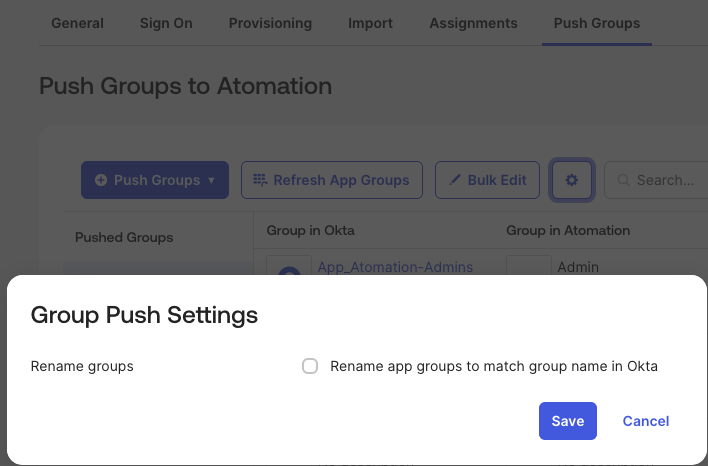
Attributes and Mapping
Use Okta-to-Atomation mappings for the core SCIM user profile. Atomation uses the Okta username as the unique user key.
| SCIM attribute | Okta value | Notes |
|---|---|---|
userName | user.login or primary email | Required and unique in the Atomation workspace. |
name.givenName | user.firstName | Used for the Atomation profile display. |
name.familyName | user.lastName | Used for the Atomation profile display. |
displayName | Okta display name | Optional profile display value. |
emails[type eq "work"].value | user.email | Use the same value as the SAML NameID/email for the reviewer test user. |
active | Okta lifecycle state | Deactivate or unassign users in Okta to revoke Atomation access. |
externalId | Okta external identifier | Optional; stored for SCIM correlation. |
| Optional core profile fields | Okta profile fields, when mapped | Supported for SCIM mapping: title, userType, preferredLanguage, locale, timezone, nickName, profileUrl, phoneNumbers, and addresses. |
Do not map profile-sourcing, profile-mastering, entitlement, or SWA-only fields for this OIN submission.
For Okta's To Okta import flow, Atomation returns existing workspace users with userName set to the workspace email, emails[type eq "work"].value set to the same email value, and name.givenName / name.familyName from the workspace profile when present.
Groups and roles
Atomation uses SCIM groups to map Okta users into Atomation roles. Use Group Push or Group Linking to map Okta groups to existing Atomation role groups when the target group already exists.
Okta may also push new groups. Atomation creates the group with the Okta group name and the default User role; a workspace Admin can later map that group to a standard or custom Atomation role. Okta may rename the downstream app group during linking. Atomation keeps role assignment separate from the group display name.
- Under To Okta, enable Import New Users and Profile Updates before enabling Import Groups if Okta requires it for group linking.
- Run an import or refresh before using Link Group so Okta can discover Atomation users and groups.
- Refresh app groups before linking roles.
- Use Link Group when mapping to an existing Atomation role group.
- Use Create Group when Okta should create the group in Atomation with the default
Userrole. - Do not use SAML group attributes for Atomation role assignment.
- Keep app-assignment groups and role groups separate when your Okta model supports it.
Test provisioning
- Assign a test user to the Atomation app after SCIM is enabled.
- Confirm the user appears in Atomation before attempting SAML sign-in.
- Update a mapped user attribute in Okta and confirm the update reaches Atomation.
- Deactivate or unassign the user in Okta and confirm Atomation access is revoked.
- Push or link a test group and confirm the expected Atomation role group membership.
Known Issues/Troubleshooting and Tips
- If connector testing returns unauthorized, rotate a new Atomation SCIM token and paste it with the
Bearerprefix. - If users can authenticate but cannot access Atomation, confirm they were provisioned by SCIM and assigned to the app.
- If group linking is empty, enable Import New Users and Profile Updates plus Import Groups, refresh app users/groups, then reload the Push Groups tab.
- Email [email protected] with the tenant subdomain, Okta app label, timestamp, and failed step.